
Multiple custom domains with branding
Multiple custom domains lets one LoginRadius tenant serve a different branded authentication experience on each of several domains, while every domain authenticates against the same user directory and policy set.
Organizations often run multiple brands, regional storefronts, or business units under one corporate umbrella. Two goals pull in opposite directions.
- Brand teams want authentication pages that look and behave like their own brand.
- Security and platform teams want one place to manage users, policy, and audit.
Standing up a separate identity provider per brand satisfies the first goal and breaks the second. Mapping each domain to its own Auth Studio template resolves the tension by separating the rendered experience from the identity backend. The result is one user directory behind many front doors. Each domain can differ in style, layout, or even the authentication method, and all of them still write to the same directory.
How it works
Every authentication request carries the domain the user reached. Auth Studio reads the incoming host, matches it against your domain-to-template mapping, and serves the matching template with its style and authentication configuration. Any domain you have not mapped falls back to the tenant default template and default style.
Auth Studio pages are server-rendered, so domain resolution happens before the page reaches the browser. The correct template and style load on first paint with no flash or re-theming.
Use cases
The three use cases below are additive. Each keeps the shared identity backend and adds another layer of per-domain independence, from a change of style only, to a change of layout, to a change of the authentication method itself. A single tenant can run all three at once across its domain portfolio.
1. Same layout, different style
Several domains share the same login layout but need a different look, such as seasonal or regional variations. Build one template with more than one style set, then map each domain to a style. The layout, fields, and flow stay identical, and only the colors, fonts, and background change.
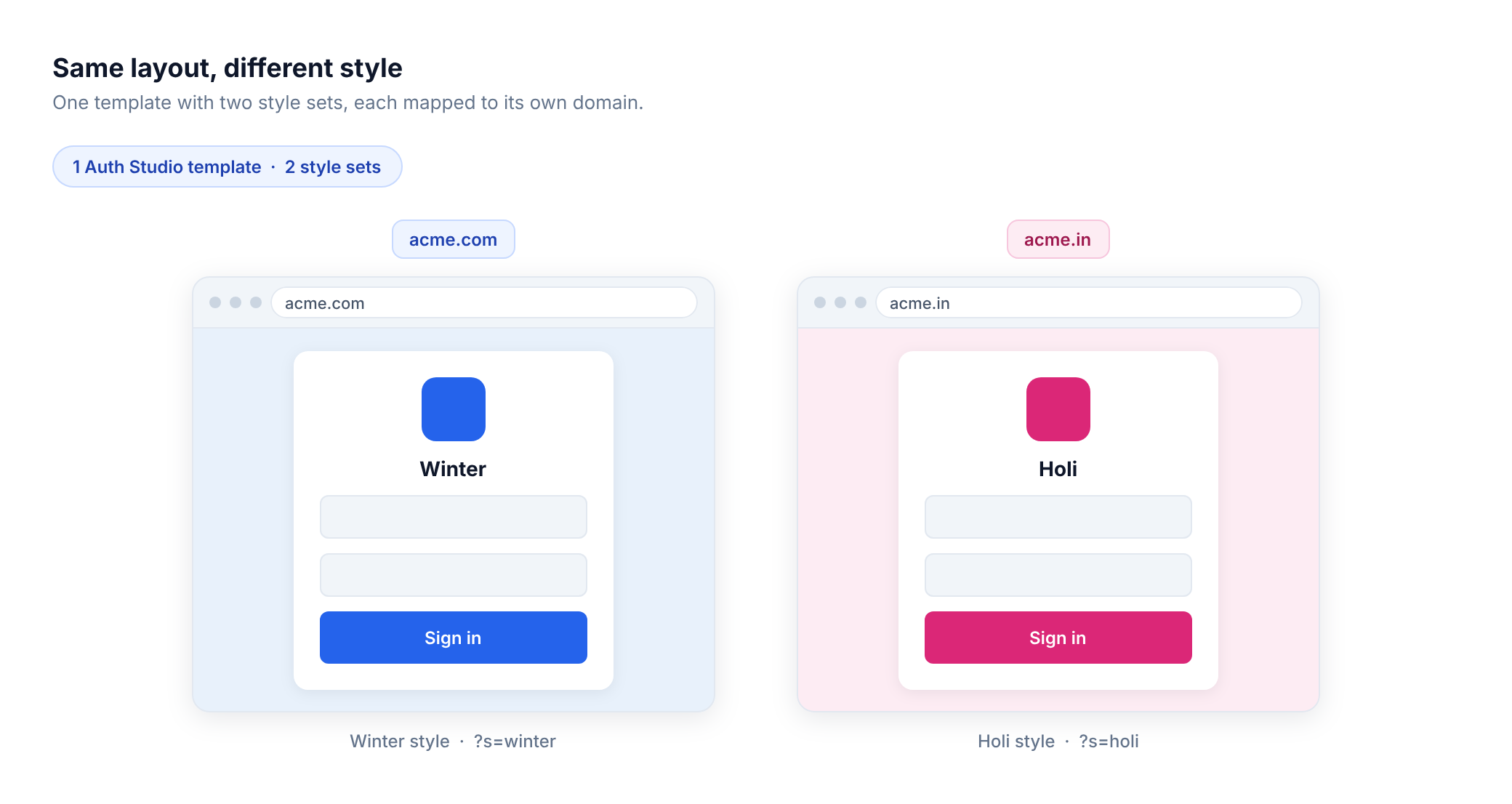
- In one template, create two style sets (for example
winterandholi) with different colors, typography, and background. - Map both
acme.comandacme.into that one template. - Apply a style to each domain either by selecting it when you map the domain, or by passing the
s=parameter on the domain URL (for example?s=winteror?s=holi).
2. Different layouts, distinct branding
Brands need genuinely different layouts, not only different colors, so a single template cannot express both. Create a separate template per brand and map each domain to its own template. Editing each template's Pages HTML gives every brand its own structure and element placement, while both templates still write to one identity directory.
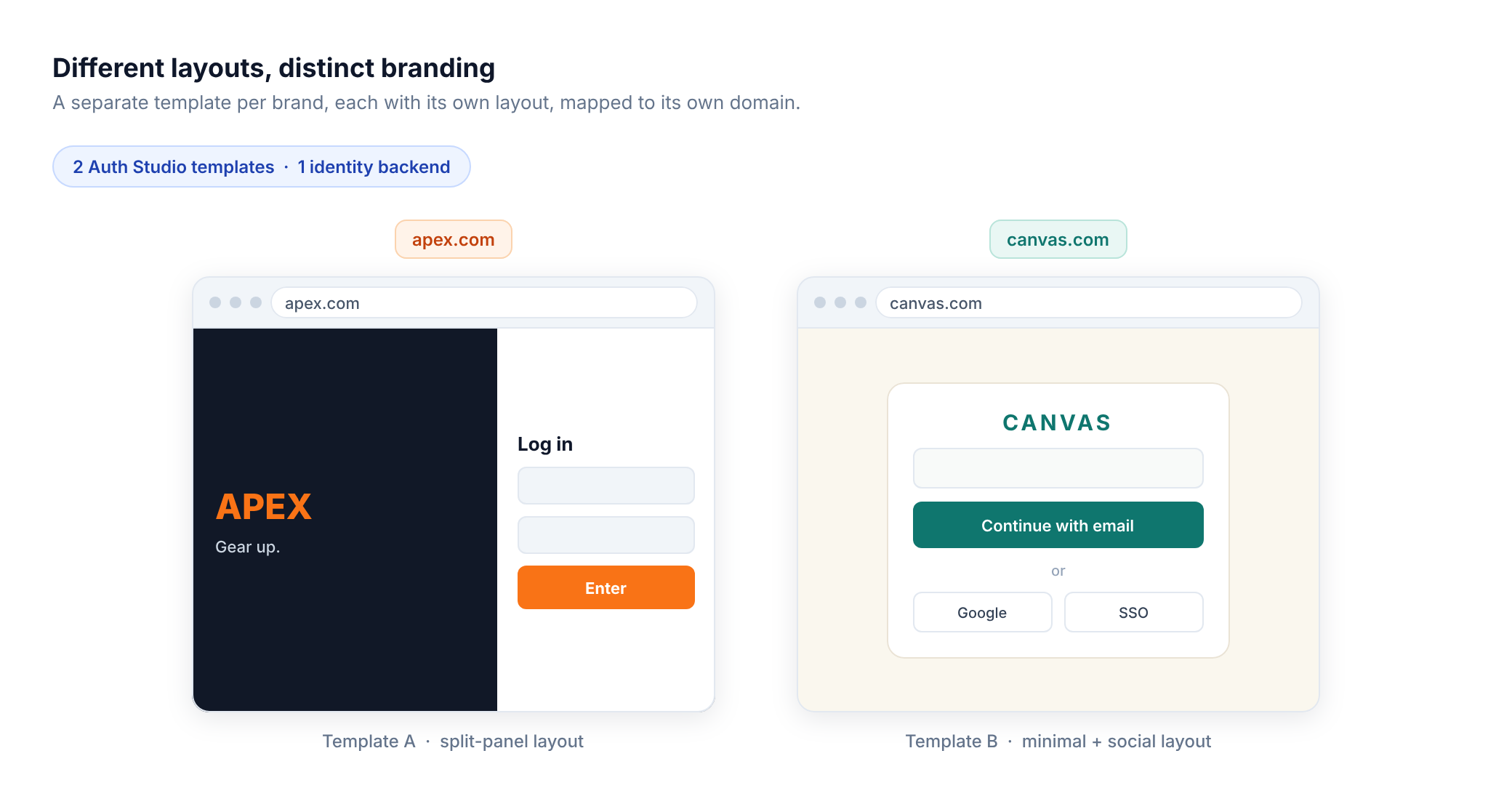
- Create one template per brand and design each brand's layout in Pages, keeping the mandatory container
<div>. - Map
apex.comto template A andcanvas.comto template B.
3. Different authentication per domain
Domains differ in the authentication contract itself, not only in appearance. An enterprise serves different client tiers where the security requirements differ, not only the interface. A consumer storefront accepts standard email and password, while a partner portal enforces Passwordless or federated sign-in such as Passkeys, SAML, or OIDC. Map each domain to a template whose Before Script runs a different authentication action or Identity Orchestration workflow.
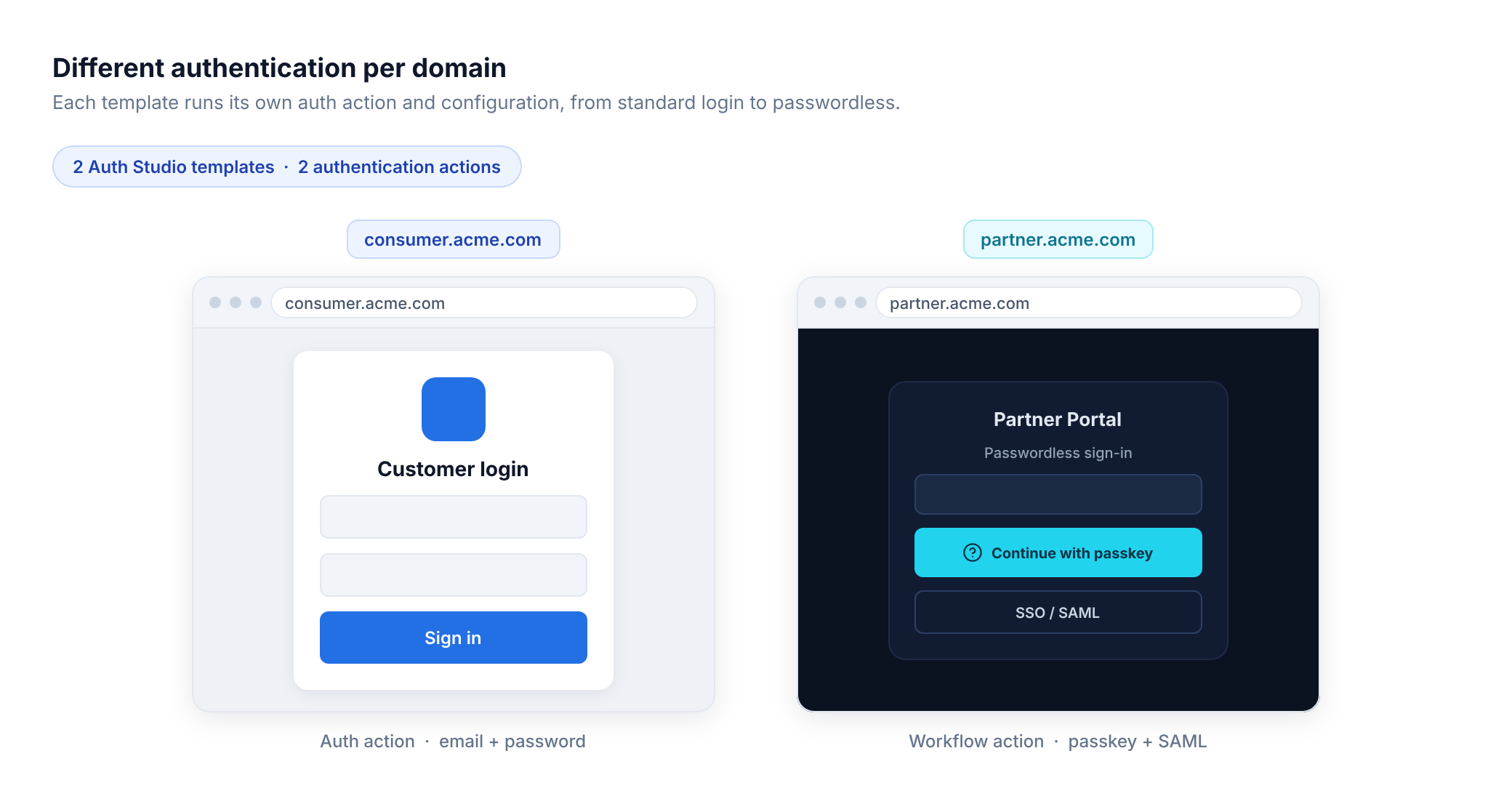
- For
consumer.acme.com, initialize the standard auth action in the template's Before Script (email and password). - For
partner.acme.com, initialize a Workflow action that runs a Passwordless or federated Identity Orchestration flow. - Set each template's options in the Before Script. See the Enterprise use case and Advanced customization.
Where to configure it
First, add and verify each domain in the Admin Console under Branding → Custom Domains. Register every domain and complete the DNS and verification steps. See Custom Domain for provisioning details.
Once a domain is verified, you can map it to a template in two ways.
Map from the Custom Domains section
In the Custom Domains list, choose to map a verified domain and pick the template that should serve it. If the template holds more than one style set, you can also select which style the domain uses.
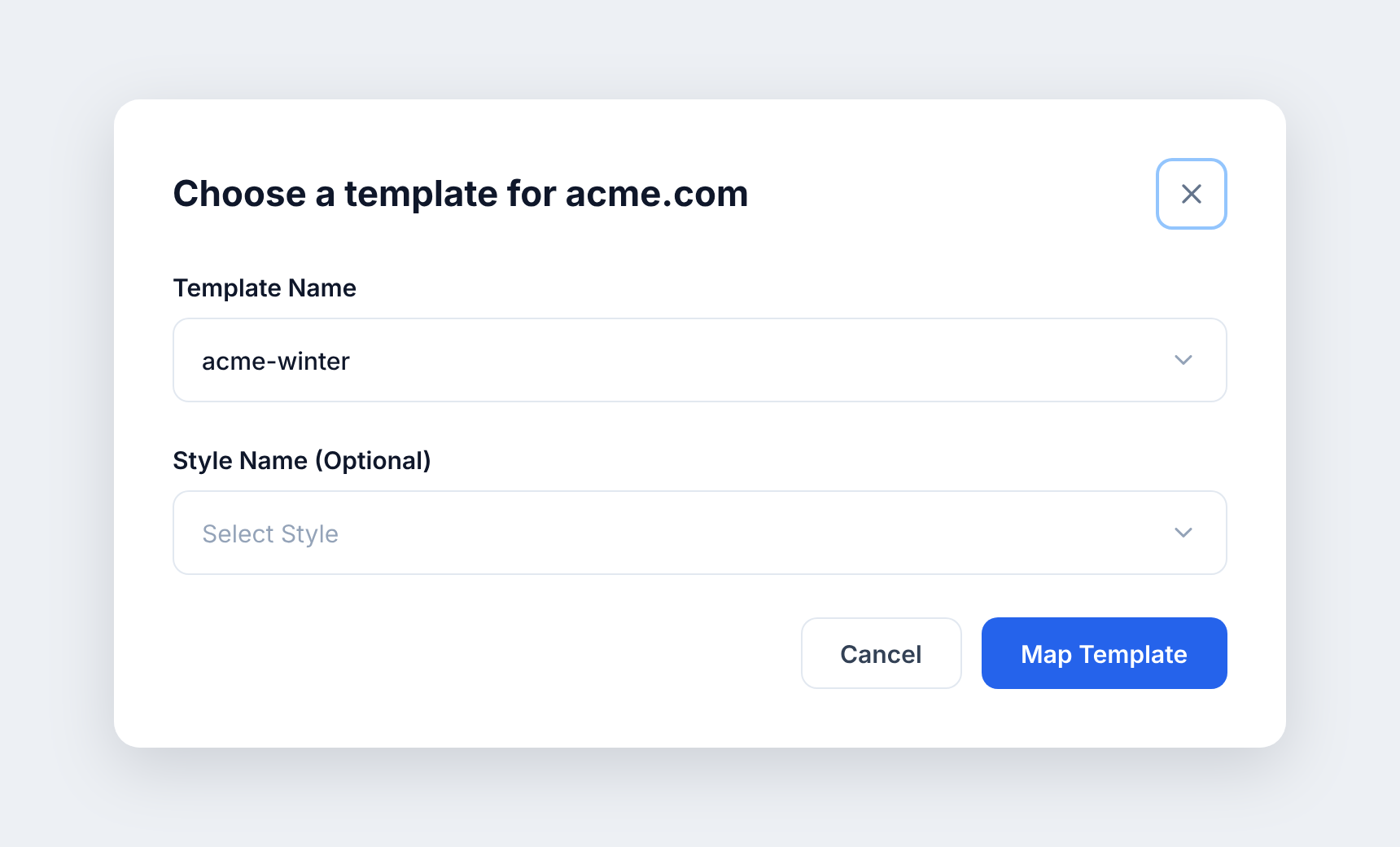
Style selection is optional and resolves in the following order.
- If you do not select a style, the domain uses the template's default style.
- If you select a style, it becomes the domain's default style.
- If the request URL carries an
s=parameter, that value takes priority and overrides the mapped style for that request.
Map from the Auth Studio template
You can also map domains while deploying a template. Open the template in Auth Studio and click Deploy Template. The deploy modal lists the domains already mapped to this template under Mapped Custom Domains, and the verified domains you can still map under Other Custom Domains. Select a domain and deploy to map it, or remove a mapping to return that domain to the default template. Selecting the LoginRadius Hosted Domain checkbox makes this template the default that serves every unmapped domain.
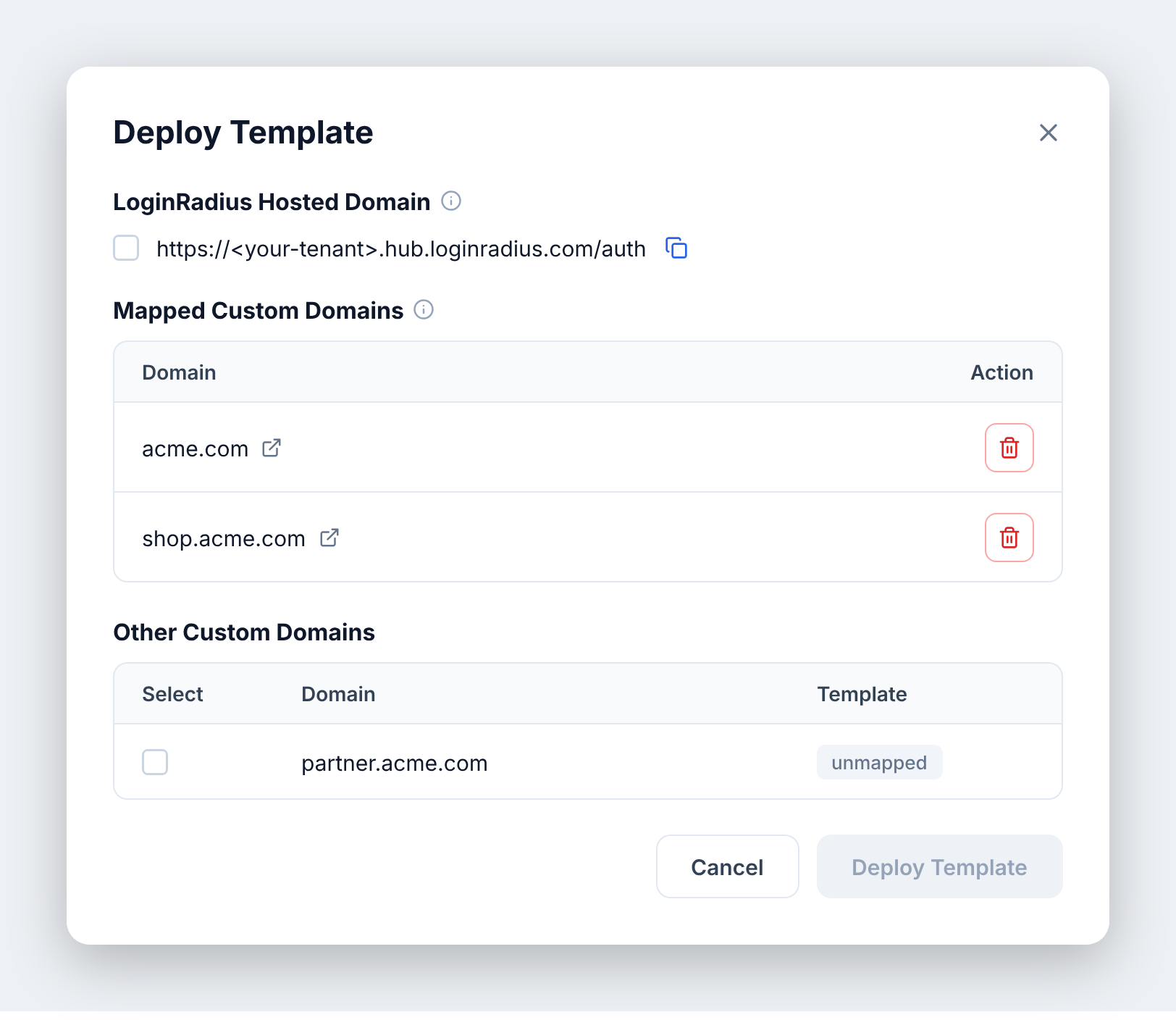
For the full deploy walkthrough, see Deploy and Preview.
Mapping is per domain either way, so changing one domain's template or style does not affect any other domain.
Email branding per domain
Emails triggered from a domain match that domain's branding too. A branded email template hydrates its placeholders from the Style applied on the domain that triggered the email, so a user on acme.com and a user on acme.in each receive a message styled to the brand they are signing in to. Domains still on a V2 template send statically branded emails instead.
For the full per-domain resolution rules and a worked example, see Branded Email Style Resolution.
Compatibility with V2 (legacy) templates
Each domain can map to either a V3 template or a V2 legacy template. Because mapping is per domain, you have three options.
- Migrate incrementally. Move domains from V2 to V3 one at a time instead of switching everything at once.
- Run both at the same time. Keep critical or high-traffic domains on V2 while you validate V3 on selected domains.
- Isolate changes. Moving one domain from V2 to V3 does not affect any domain still mapped to V2.
For configuring branding on legacy templates, see Legacy multi-branding configuration.