
Strong Customer Authentication (SCA)
SCA is only available through Identity Orchestration (IO) Workflows combined with Pushed Authorization Requests (PAR) and Rich Authorization Requests (RAR).
Overview
Strong Customer Authentication (SCA) is mandated by PSD2 for online payments and high-value operations. It requires multi-factor authentication, explicit user consent to transaction details, and cryptographic binding of the approval to a specific amount and payee: known as Dynamic Linking.
LoginRadius enables SCA through the following building blocks:
| Building Block | Role | RFC |
|---|---|---|
| PAR (Pushed Authorization Request) | Sends sensitive auth params over a back-channel instead of the browser URL | RFC 9126 |
| RAR (Rich Authorization Request) | Attaches structured authorization_details (amount, currency, payee, type) to the PAR | RFC 9396 |
| IO Workflow | Orchestrates SCA steps: session check → risk evaluation → MFA challenge | NA |
| Script node | Reads authorization_details from SharedState; runs risk logic; can block transactions | NA |
| Push MFA | Sends transaction details to mobile device; binds approval to specific transaction via challenge | NA |
linking_id | Server-generated UUID correlating the browser session with the mobile MFA device | NA |
Architecture Overview
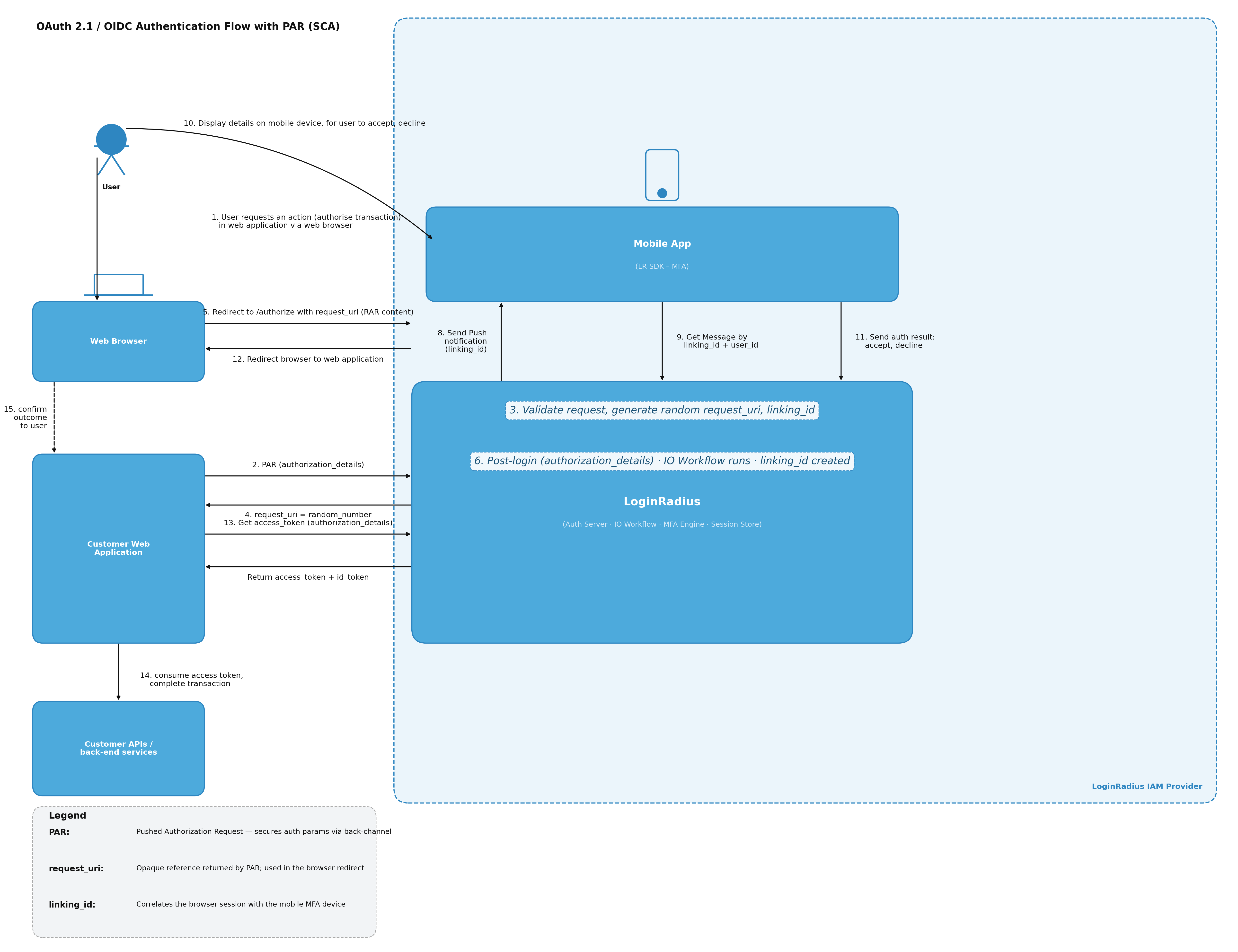
How It Works: End-to-End Flow
- The customer app POSTs to
/parwithauthorization_details. LoginRadius generates arequest_uriandlinking_idserver-side: neither value touches the browser URL. - The customer app redirects the browser to
/authorizeusing only the opaquerequest_uri. - The LoginRadius Authorization Server resolves the
request_uriand launches the configured IO Workflow. - The Has Session node gates the flow. If no session exists, a child login workflow runs first, then loops back to Has Session.
- The Script node reads
authorization_detailsfromlrObject.Session.SharedState(auto-populated from the PAR payload), performs risk evaluation, sets verified fields for downstream nodes, and can block high-risk transactions viahook.setError(). - The Send Push Notification node pushes transaction details to the mobile device. The message template references SharedState:
{{sharedstate.verified_amount}} {{sharedstate.currency}} to {{sharedstate.verified_payee}}. - The mobile app uses the LR SDK to call
GET /identity/v2/auth/push/par/{linking_id}to fetchauthorization_details+challenge, then displays them to the user for explicit confirmation (Dynamic Linking). - The user approves → mobile signs the challenge with RSA private key → Verify Push Notification validates the signature.
- Workflow succeeds → LoginRadius issues an OIDC authorization code.
- The customer app exchanges the code at
/token. The resultingid_tokencontainsauthorization_detailsandlinking_idclaims.
The linking_id correlates the browser session with the mobile MFA device. The user sees and approves the exact amount and payee. This cryptographic binding satisfies PSD2's Dynamic Linking requirement.
Prerequisites
All four must be in place before configuring SCA.
Step 1: Configure the OIDC Application
In the Admin Console, navigate to Applications → select your app → Tokens tab → Authorization Requests section.
Enable PAR
- Toggle Pushed Authorization Request (PAR) ON.
- Optionally enable Require PAR to force all authorization requests through the PAR endpoint.
Only enable Require PAR on a dedicated SCA OIDC app. Any /authorize call without a request_uri will be rejected. Create a separate app for SCA flows and leave standard login apps unchanged.
Enable RAR
- Toggle Rich Authorization Request (RAR) ON.
- Under Allowed RAR Types, click + Add Type and enter your type string (e.g.
lr_payment). - This value must match the
typefield inauthorization_details. Matching is case-insensitive. - Multiple types are supported (e.g.
account_change,data_export).
Step 2: Build the SCA Workflow
Create an IO Workflow (e.g. named strongcustomerauthentication). Recommended node topology:
Node Configuration Reference
| Node | Type | Key Configuration |
|---|---|---|
| Has Session | hassession | Entry node. Authenticated users go to Script; unauthenticated users go to Child Workflow. |
| Script | executecustomscript | Risk evaluation script (see Step 3). Reads SharedState. Can block via hook.setError(). |
| Identity Lookup | identitylookup | Resolves full user identity for MFA state routing. |
| MFA Configured State | mfastate | Method: Push Auth. Routes to verify if configured; Configure MFA if first time. |
| Send Push Notification | sendpushnotification | Message: "Authorize payment of {{sharedstate.verified_amount}} {{sharedstate.currency}} to {{sharedstate.verified_payee}}" |
| Verify Push Notification | verifypushnotification | Validates RSA signature. Detects SCA re-auth mode (no new RAAS session). |
| Configure Push Notification | configurepushnotification | First-time push MFA setup. QR Code Width: 200. |
| Child Workflow | childworkflow | Calls login sub-workflow (e.g. scauthlogin). On success, loops back to Script. |
Step 3: Script Node: Risk Evaluation with SharedState
The Script node runs as a serverless JavaScript function within the workflow. authorization_details fields from the PAR payload are automatically mapped into lrObject.Session.SharedState before the script executes.
const axios = require("axios");

exports.execute = async (lrObject, hook) => {
  try {
    if (!lrObject?.IsAuthenticated) {
      hook.setError(401, "Not authenticated", "Login required");
      return;
    }

    const email = Array.isArray(lrObject?.Identity?.Email)
      ? lrObject.Identity.Email[0]
      : lrObject?.Identity?.Email || "";

    if (!email) {
      hook.setError(400, "Missing email", "Email is required for risk evaluation");
      return;
    }

    // authorization_details fields are automatically populated in SharedState
    const sharedState = lrObject?.Session?.SharedState || {};
    const amount   = sharedState.amount   || "";
    const currency = sharedState.currency || "";
    const payee    = sharedState.payee    || "";

    // Call your risk evaluation engine
    const risk = await axios.post("https://risk.example.org/score", {
      email,
      authorization_details: { amount, currency, payee },
    }, { headers: { "Content-Type": "application/json" }, timeout: 5000 });

    if (risk.data.score >= 80) {
      hook.setError(403, "HIGH_RISK", `Transaction blocked: risk score: ${risk.data.score}`);
      return;
    }

    // Set verified fields: used by the Send Push Notification message template
    hook.sharedState.set("verified_amount", amount);
    hook.sharedState.set("verified_payee", payee);
    hook.sharedState.set("sca_verified", "true");

    // Inject SCA claims into the final ID token
    hook.idToken.setCustomClaim("sca_verified", "true");
    hook.idToken.setCustomClaim("risk_score", String(risk.data.score));

  } catch (error) {
    hook.setError(500, "SCA_FAILED", error?.message || "Unexpected error");
  }
};
Available npm packages in IO scripts: axios, underscore, moment, async, @slack/webhook
For more on the Script node and SharedState, see Scripts.
Step 4: API Reference
Pushed Authorization Request (PAR)
POST authorization parameters back-channel. Returns a request_uri valid for ~90 seconds.
curl --location 'https://{your-domain}/api/oidc/{app-name}/par' \
--header 'Content-Type: application/x-www-form-urlencoded' \
--data-urlencode 'client_id={client_id}' \
--data-urlencode 'redirect_uri={redirect_uri}' \
--data-urlencode 'scope=openid email profile' \
--data-urlencode 'response_type=code' \
--data-urlencode 'response_mode=query' \
--data-urlencode 'state={state}' \
--data-urlencode 'workflow=strongcustomerauthentication' \
--data-urlencode 'authorization_details={"type":"lr_payment","amount":"500","currency":"EUR","payee":"Stripe"}'
Response:
{
  "request_uri": "urn:ietf:params:oauth:request_uri:07824f9f-4782-4c61-9ac6-d61cf8f7cb09",
  "expires_in": 90
}
Authorize with request_uri
Use the opaque request_uri in /authorize: no sensitive data appears in the browser URL:
curl --location 'https://{your-domain}/service/oidc/{app-name}/authorize?\
client_id={client_id}\
&request_uri=urn%3Aietf%3Aparams%3Aoauth%3Arequest_uri%3A07824f9f-4782-4c61-9ac6-d61cf8f7cb09'
Mobile: Fetch Authorization Details (Dynamic Linking)
When the push notification arrives, the LR SDK calls this endpoint to retrieve the exact transaction the user is being asked to approve:
GET /identity/v2/auth/push/par/{linking_id}?apikey={apikey}
Response:
{
  "authorization_details": {
    "type": "lr_payment",
    "amount": "500",
    "currency": "EUR",
    "payee": "Stripe"
  },
  "challenge": "abc123..."
}
The mobile app displays: "Authorize payment of €500 EUR to Stripe?". On user approval, the SDK signs SHA256("Approved" + 2faToken + challenge) with the device's RSA private key and submits the approval. This RSA signature over the challenge provides cryptographic binding between the user's approval and the specific transaction.
If the user rejects the push notification or the approval times out, the Verify Push Notification node returns false. The workflow takes the failure path: the session status is updated to rejected, no authorization code is issued, and the browser receives an OAuth error response.