POPUPS! They can annoy you but if used properly, they can be a boon to any marketing campaign. In 2015, Taylor wrote an article on best practices to use popup. While the article discussed how to optimize popup, in this article I am going to list down the types of articles and how you can implement them. I have added codes for every type of popup for a better idea.
1. Creating a basic popup:
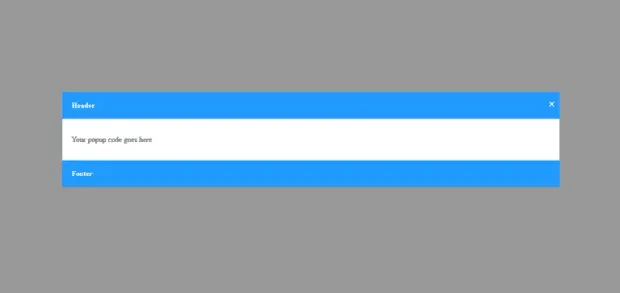
This section talks about creating a basic popup using simple HTML and CSS. There is a separate section for header, footer and content. I have also added a close button at top right corner of the popup. There are three steps to create this popup.
A. Add HTML [manage a structure of a popup]
1<div class="popup-content">
2<span class="popup-close">×</span>
3<div class="popup-header">Header</div>
4<div class="popup-body">
5<p>Your popup code goes here</p>
6</div>
7<div class="popup-footer">Footer</div>
8</div>
9</div>\
B. Add CSS [Display Like a popup]
1<style>
2.popup-layout {
3position: fixed;
4z-index: 1;
5left: 0;
6top: 0;
7width: 100% ;
8height: 100% ;
9overflow: auto;
10background-color: rgb(0, 0, 0);
11background-color: rgba(0, 0, 0, 0.4);
12}
13.popup-header,
14.popup-footer{
15background: #29f;
16padding: 20px;
17color: #fff;
18font-weight: bold;
19}
20.popup-body{
21padding: 20px;
22}
23.popup-content {
24background-color: #fefefe;
25margin: 15% auto;
26border: 1px solid #888;
27width: 60% ;
28}
29.popup-close {
30color: #FFF;
31margin: 10px;
32float: right;
33font-size: 28px;
34font-weight: bold;
35}
36.popup-close:hover,
37.popup-close:focus {
38color: black;
39text-decoration: none;
40cursor: pointer;
41}
42</style>
Moreover, you can also check out this tutorial of creating a basic popup if you want to learn the basic understanding.
C. Add Script [for action on close button]
1<script>
2var popup\_close = document.getElementsByClassName('popup-close');
3for (var i = 0; i < popup\_close.length; i++) {
4var closeThis = popup\_close\[i\];
5closeThis.addEventListener("click", function () {
6document.getElementsByClassName('popup-layout')\[0\].style.display = "none";
7}, false);
8}
9</script>
2. Creating a timer based popup:

This is a timer based popup which can be displayed at a certain time after the page is loaded.
For reference, I have added the code to display the popup after 5 second [Add following code]. Steps are as below.
Follow all the steps mentioned in section 1. (Creating a simple popup) and add the following code below that code.
1<script>
2document.getElementsByClassName('popup-layout')\[0\].style.display = "none";
3setTimeout(function () {
4document.getElementsByClassName('popup-layout')\[0\].style.display = "block";
5}, 5000);
6</script>
To Auto hide after 5 second, add following code.
1<script>
2document.getElementsByClassName('popup-layout')\[0\].style.display = "block";
3setTimeout(function () {
4document.getElementsByClassName('popup-layout')\[0\].style.display = "none";
5}, 5000);
6</script>
3. Creating a Scroll popup:
This one shows up when you scroll down the page. I have set it to 500 pixels, you can change as per requirements
1<script>
2document.getElementsByClassName('popup-layout')\[0\].style.display = "none";
3window.onscroll = function () {
4if (document.body.scrollTop > 500 || document.documentElement.scrollTop > 500) {
5document.getElementsByClassName('popup-layout')\[0\].style.display = "block";
6}
7}
8</script>
4. Creating a Scroll / Time [5 second] popup:
Pretty much the same as above but this one shows popup after 5 seconds of scrolling .
1<script>
2document.getElementsByClassName('popup-layout')\[0\].style.display = "none";
3window.onscroll = function () {
4if (document.body.scrollTop > 500 || document.documentElement.scrollTop > 500) {
5setTimeout(function () {
6document.getElementsByClassName('popup-layout')\[0\].style.display = "block";
7},5000 }
8}
9</script>
5. Creating an Exit popup:
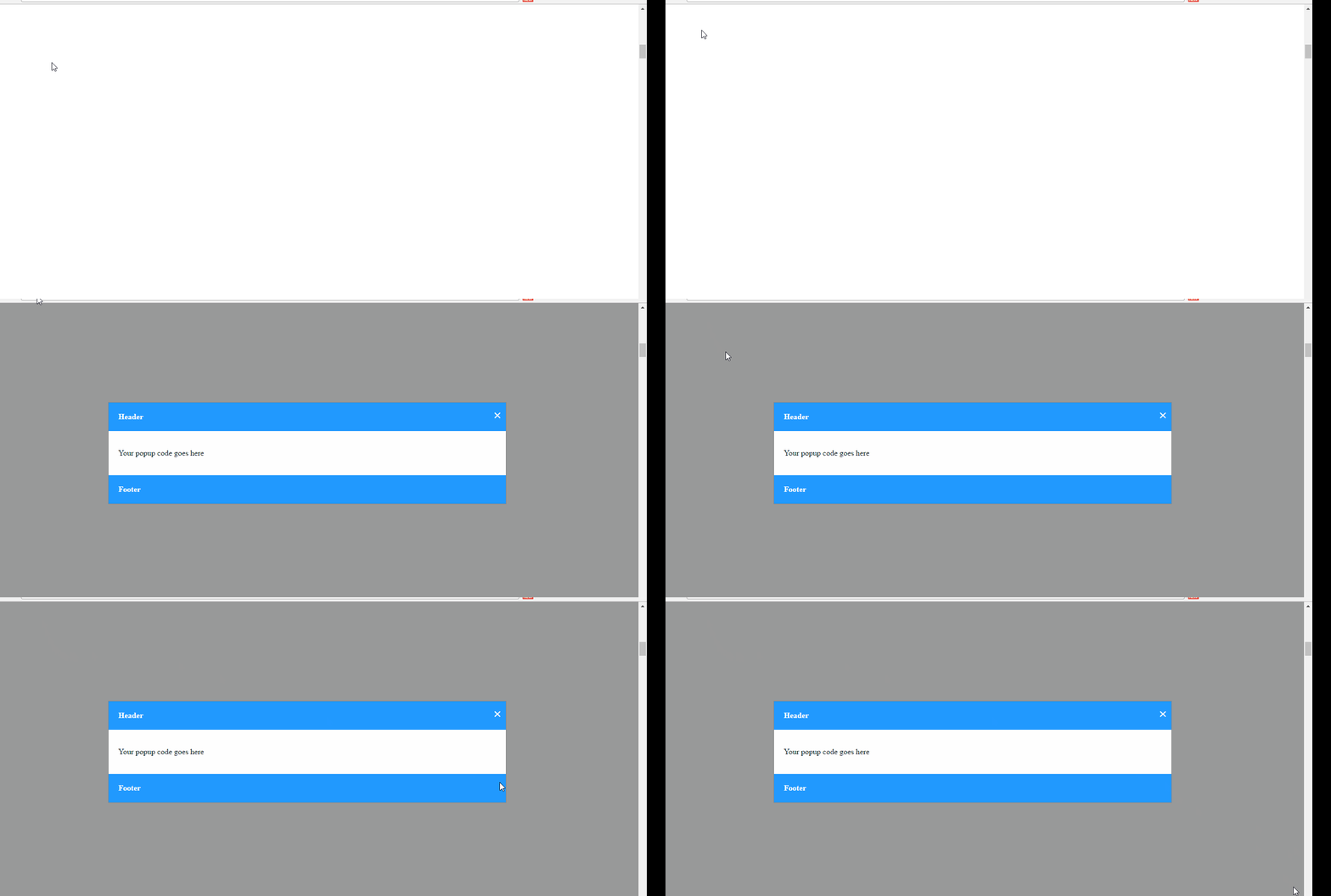
Only confirmation alert popup will show and you can’t make changes in html of this popup. Use following line of code on a single page.
1<script>
2window.onbeforeunload = function() {
3return "You are about to leave"
4}
5</script>
There is another variation you can make here. In this scenario, if the user moves his cursor beyond the browser screen, you can create a popup to convince the user to stay. Below is the line of code you will need.
1<script>
2document.getElementsByClassName('popup-layout')\[0\].style.display = "none";
3document.addEventListener("mouseout", function (event) {
4document.getElementsByClassName('popup-layout')\[0\].style.display = "block";
5});
6</script>
So guys, I hope this guide helped you through various types of popups. If you love animating your pop-up, you might want to check out this tutorial of creating an animated CSS pop-up. Do try them and let us know your experiences.