
Passkeys on Kitura app
Implement Passkeys Authentication/Login on your Kitura App using LoginRadius
 Kitura
 Passkeys
Built for Developers
Performs for Enterprise Scale!
Try our platform for free or talk to our CIAM expert to book a customer demo.
1.5B+
Identities
28+
Data Centers
100%
Uptime
100K
RPS Scaling

Start Passkeys Implementation Using LoginRadius Admin Console
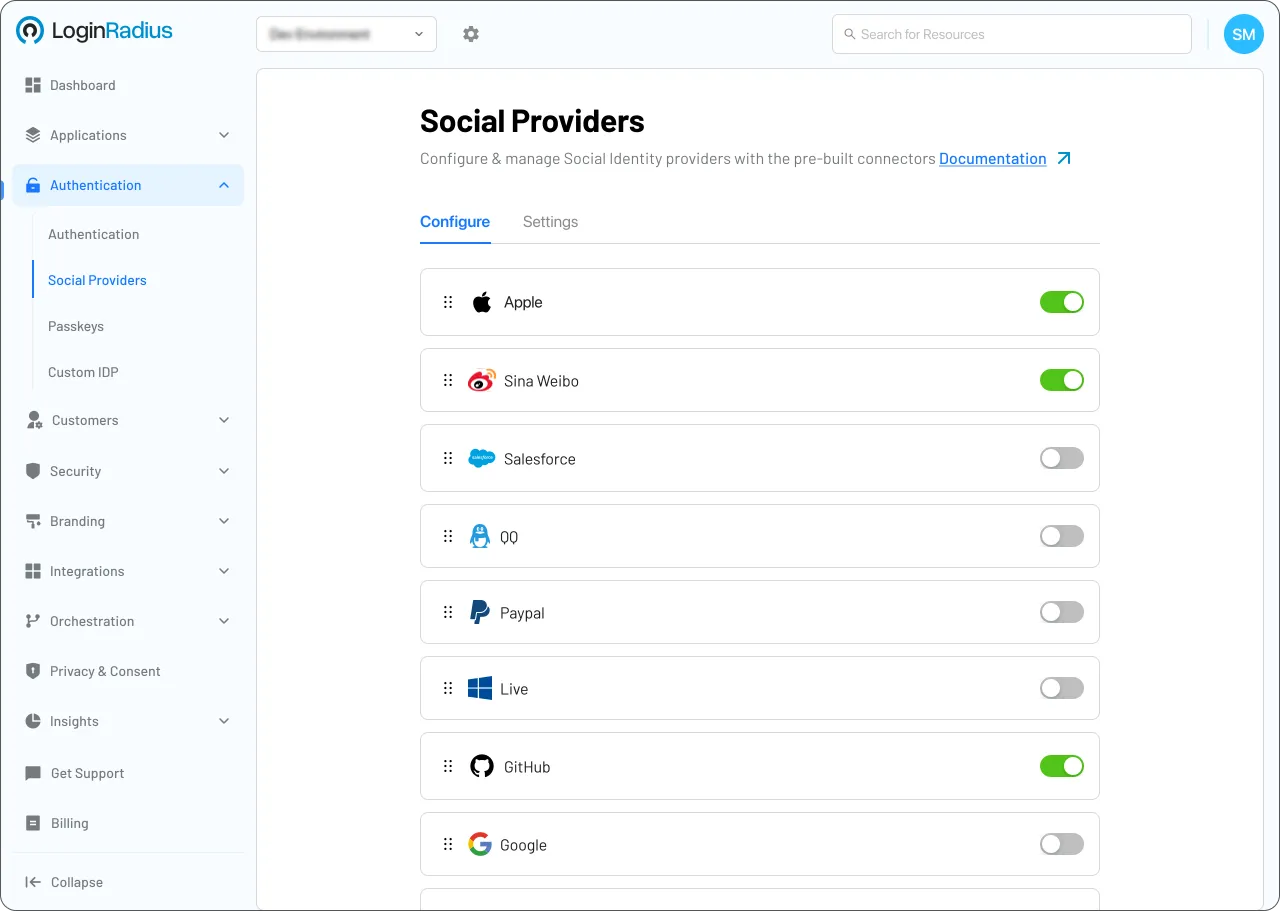
1
Navigate to Authentication > Authentication Configuration > Passkeys.
2
Toggle Passkey Authentication to Enable.
3
Input your RP ID (Relaying Party ID) and click Update.
Trusted by Developers
From Startups to Fortune 500 Companies








Interactive Resources


Detailed Case Study

You might also be interested in
Passkeys on other apps

Passkeys with PhoneGap

Passkeys with Expressjs

Passkeys with Grails

Passkeys with Hapi
Other features for your Kitura apps

Webhooks with Kitura

Identity Verification with Kitura

Bot Defense with Kitura

SIEM with Kitura
Social Identity Providers for your Kitura apps

Shopify with Kitura

OAuth2 with Kitura

Bitly with Kitura