
In this post, we will look at the step-by-step process for Kafka Installation on Windows. Kafka is an open-source stream-processing software platform and comes under the Apache software foundation.
What is Kafka?
Kafka is used for real-time streams of data, to collect big data, or to do real-time analysis (or both). Kafka is used with in-memory microservices to provide durability and it can be used to feed events to complex event streaming systems and IoT/IFTTT-style automation systems.
Installation :
1. Java Setup:
Kafka requires Java 8 for running. And hence, this is the first step that we should do to install Kafka. To install Java, there are a couple of options. We can go for the Oracle JDK version 8 from the Official Oracle Website.
2. Kafka & Zookeeper Configuration:
Step 1: Download Apache Kafka from its Official Site.
Step 2: Extract tgz via cmd or from the available tool to a location of your choice:
1tar -xvzf kafka_2.12-2.4.1.tgzStep 3: Copy the path of the Kafka folder. Now go to config inside Kafka folder and open zookeeper.properties file. Copy the path against the field dataDir and add /zookeeper-data to the path.
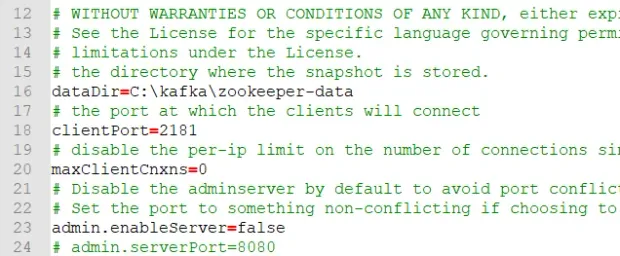 Step 4: we have to modify the config/server.properties file. Below is the change:
1fileslog.dirs=C:\kafka\kafka-logsBasically, we are pointing the log.dirs to the new folder /data/kafka.
Run Kafka Server:
Step 1: Kafka requires Zookeeper to run. Basically, Kafka uses Zookeeper to manage the entire cluster and various brokers. Therefore, a running instance of Zookeeper is a prerequisite to Kafka.
To start Zookeeper, we can open a PowerShell prompt and execute the below command:
1.\bin\windows\zookeeper-server-start.bat .\config\zookeeper.propertiesIf the command is successful, Zookeeper will start on port 2181.
Step 2: Now open another command prompt and change the directory to the kafka folder. Run kafka server using the command:
1.\bin\windows\kafka-server-start.bat .\config\server.propertiesNow your Kafka Server is up and running, you can create topics to store messages. Also, we can produce or consume data directly from the command prompt.
Create a Kafka Topic:
- Open a new command prompt in the location C:\kafka\bin\windows.
- Run the following command:
1kafka-topics.bat --create --zookeeper localhost:2181 --replication-factor 1 --partitions 1 --topic testCreating Kafka Producer:
- Open a new command prompt in the location C:\kafka\bin\windows
- Run the following command:
1kafka-console-producer.bat --broker-list localhost:9092 --topic testCreating Kafka Consumer:
- Open a new command prompt in the location C:\kafka\bin\windows.
- Run the following command:
1kafka-console-consumer.bat --bootstrap-server localhost:9092 --topic test --from-beginningIf you see these messages on consumer console,Congratulations!!! you all done. Then you can play with producer and consumer terminal bypassing some Kafka messages.