Imagine this - an end-user has signed up for your perfectly designed app that offers great user experience. But soon they receive a plaintext, clunky verification email that looks absolutely nothing like the website! And they start doubting your brand, eventually dropping off.
It’s a sad reality that many brands go through. They need to communicate with their end-users via email for multiple purposes, such as during account creation, sending authentication OTPs, or assisting users when they forget their passwords. And those emails must strictly follow the brand style elements.
Traditionally, creating a template that perfectly follows brand elements required developers to write custom code to define the HTML and CSS. Every new workflow or updated messaging requirement meant pulling engineering resources away from core product development work.
And if you are managing multiple brands, then the problem becomes worse. Each of these brands naturally has different brand elements, like different logos and brand colors.
As a result, devs needed to create the exact same emails multiple times for different brands just to ensure appropriate branding and messaging.
This duplicated effort was a massive waste of time - until we attempted to solve this!
We Reworked How Branded Email Templates Are Created and Maintained
To address this, we first took a step back and looked at how emails were being created in the first place.
Every new workflow or update meant writing HTML, aligning styles, and often repeating the same structure across templates.
So instead of continuing to optimize this at the code level, we changed the approach completely.
With LoginRadius AI Email Branding, templates can now be generated based on a simple natural language prompt. You describe what the email is for and how it should look, and the system generates a ready-to-use template aligned with your requirements.
You can reuse the template and make changes on top of it whenever you want.
This removes the need to start from scratch every time, while still giving you full control to tweak and refine the output.
But generating templates was only one part of the problem. The bigger challenge showed up in multi-brand environments.
Solving Multi-Branding Challenge Next
Even when the structure of the email stayed the same, teams still had to recreate templates just to match different brand elements - colors, fonts, spacing, and so on.
To solve that, we introduced Style Placeholders.
Instead of hardcoding style values into each template, placeholders reference your Auth Studio configuration at runtime. That means the same template can dynamically pick up the correct brand properties - such as primary colors, typography, and layout spacing - based on the context in which it’s used.
The result is a much simpler model:
you define the structure once, and the system handles the brand-specific rendering.
So instead of maintaining multiple versions of the same template, you can rely on a single template that adapts automatically depending on the brand the user is interacting with - without duplication or additional effort.
Let’s give you a walkthrough of LoginRadius AI Email Branding so that you can start using it yourself!
Step-by-Step Walkthrough - How To Create Branded Email Templates?
Go to Branding → Email Templates in your LoginRadius console.
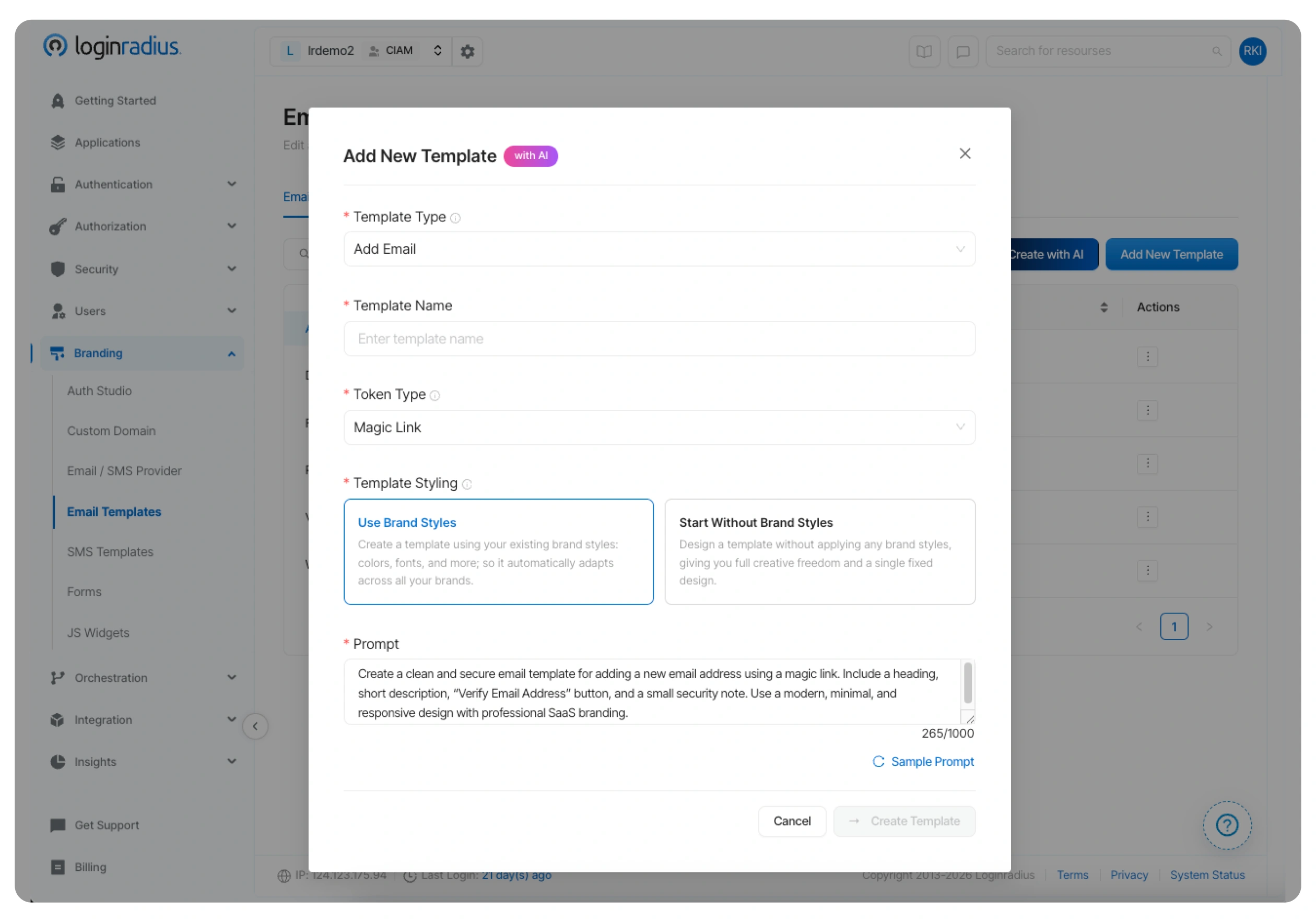
When you use the "+ Create with AI" tool in the console, you enter a form that asks you to write a prompt.
In the form, you will first need to provide two basic parameters:
-
Template Type: Select exactly what workflow this email is for (e.g., Welcome Email, Verification, Forgot Password, Add Email, etc.)
-
Template Name: Give your template a unique, recognizable name so your team can easily identify it later
Also, in that form, you can choose between two primary styling options:
-
Use Brand Styles: This creates a template using your existing brand styles (colors, fonts, etc.) so it automatically adapts across all your brands.
-
Start Without Brand Styles: This designs a template without applying those dynamic styles, giving you a single fixed design for full manual control over its appearance.
Finally, you need to write your prompt in the prompt text area.
For example, you could write: "Generate an email for adding a new email address, but this one needs to use a magic link instead of a code". Keep your instructions clear and concise, as there is a 1000-character limit for the prompt.
Once you are done filling the form and writing the prompt, click on “Create Template”, and let the magic happen!
Within moments, the AI will generate your fully coded, dynamically branded template. From there, you can easily tweak any text, preview how it looks, or immediately deploy it for your users.
Whether you are configuring Welcome Emails for Account Registration, Magic Links for Passwordless Login, or Security Alerts for failed login attempts, you can easily generate and manage all of these templates from one centralized hub.
Deep Dive: Personalization with Placeholders
Now that your AI assistant has generated a beautifully branded template, you need to make sure the content feels personal to the user receiving it. Sending a generic "Dear User" email is a missed opportunity to build trust.
With LoginRadius, you can dynamically personalize the content of your email templates based on the user's profile and context by using predefined placeholder tags.
When an email is triggered, the system automatically replaces these tags with the exact values tied to that specific user.
Here is a breakdown of the standard placeholder tags you can drop into your AI-generated templates:
| Placeholder Tag | What It Does |
|---|---|
#Name#, #FirstName#, #LastName# | Automatically inserts the user's full name, first name, or last name. |
#Email#, #UserName# | Displays the user's registered email address or username. |
#City#, #State#, #Country#, #PostalCode# | Pulls location data directly from the user's profile. |
#OTP# | Inserts a time-limited One-Time Password if the numeric code feature is enabled. |
#GUID# | Inserts a unique identifier appended to the vtoken query parameter for secure links. |
#Url# | Inserts the URL passed via JavaScript options (such as a verification or reset password link). |
#Providers# | Lists the name of the social login provider the user utilized. |
#IpAddress#, #UserAgent# | Displays the IP address and browser user-agent string of the user (great for security alerts). |
## | Displays the value of any custom field you have defined in the user's profile. |
Section Tags for Conditional Content
Sometimes, personalization isn't just about swapping a name; it’s about changing the structure of the email itself.
For instance, when configuring a Forgot Password email, some users might need a standard password reset link, while others who signed up with Google or Facebook might just need a reminder of which social provider they connected.
Section Tags allow you to conditionally include or exclude specific content blocks depending on the user's scenario, ensuring your message remains clean and relevant.
| Section Tag | Purpose |
|---|---|
#FPass / FPass# | Marks the start and end of the Password Reset section. |
#FProv / FProv# | Marks the start and end of the Forgot Provider (Social Login) section. |
Some Advanced Configurations
While the AI handles the heavy lifting of design and layout, administrators still have granular control over how these templates behave in the real world.
For most templates (excluding the Welcome Email), you can configure a few advanced security and delivery settings directly in the console:
-
Token Type: You can dictate how a user authenticates from the email. Choose between a Magic Link (which uses the #Url# and #GUID# placeholders to generate a clickable link) or an OTP (which sends a time-limited numeric code using the #OTP# placeholder).
-
Request Limits: To prevent spam abuse, you can set a Request Limit to cap how many emails of a specific type can be triggered for a single user within a set timeframe.
-
Request Disable Period: If a user hits that limit, this setting defines exactly how many minutes further requests will be blocked.
-
Email Token Validity Limit: This allows you to set an expiration timer (in minutes) on your Magic Links or OTPs.
Email for Multi-Branding
If you work for an enterprise managing complex architecture, you might be utilizing multiple custom domains. The behavior of your new branded, dynamic email templates depends heavily on how your v2 (legacy) and v3 (modern) templates are deployed.
If you do not use multiple custom domains, simply deploy the v3 template, and your AI-generated branded emails will work perfectly.
However, if you do use multiple custom domains, the v3 template must be mapped to at least one custom domain or your hub domain to ensure full branding is applied.
Here is exactly how the system routes your styling depending on your configuration:
| Scenario | Custom Domain (e.g., abc.com) | Hub Domain | What Happens When the Email Sends? |
|---|---|---|---|
| Case 1 | v2 template | v3 template | Branded templates will apply the correct styles only when the email is triggered from the hub domain. |
| Case 2 | v3 template | v2 template | Branded templates will apply the correct styles only when the email is triggered from the custom domain. |
| Case 3 | v2 template | v2 template | Branded templates are not shown or applied. You will not see branded styles, the preview toggle, or branded placeholders. |
The Bottom Line: What Your Business Gains?
Here are the biggest benefits your organization will see:
1. Reclaim Valuable Developer Time
In the past, every new messaging requirement meant devs will stop working on the core product to write custom HTML and CSS from emails.
With our generative AI, they can instantly build the exact templates they need by simply typing a natural language prompt.
This empowers devs to move faster and start focusing on high-impact projects.
2. End the Multi-Brand Duplication Nightmare
If your enterprise manages multiple sub-brands, you know the pain of having to create the exact same email multiple times just to swap out logos and brand colors.
By utilizing dynamic Style Placeholders, you only have to build the template once. The platform will automatically look up the specific brand's properties (like primary colors, fonts, and padding) from your auth studio and dynamically adjust the look and feel on the fly. This completely eliminates duplicated effort and wasted time.
3. Protect Your Deliverability and Build User Trust
When system emails look different from your main website, users get confused. In a landscape filled with phishing attempts and spam, a generic, unbranded email is highly likely to be marked as spam by cautious users.
Once users start flagging your transactional emails, it can severely hamper your organization's future communication attempts and tank your overall deliverability.
AI Email Branding ensures that every touchpoint looks professional and trustworthy.
4. Unify Your Identity Communications
Instead of managing different messaging systems for different workflows, you can control the entire user journey from a single console.
It allows you to maintain consistent branding across everything from Account Registrations, Passwordless, Magic Links, to MFA codes and risk-based Security Alerts.
5. Personalization at Scale
Consumers expect personalized experiences. By leveraging the predefined placeholders (like #FirstName#, #City#, or #OTP#), you can ensure that every automated email feels tailored directly to the receiver.
You can even pull in custom fields from a user's profile to take that personalization a step further.
To Sum Up
Upgrading your brand email communication doesn't have to mean pulling developers away from building the core product. Neither do they have to duplicate their efforts across multiple brands.
With LoginRadius AI Email Branding, teams can instantly spin up perfectly branded, highly personalized branded emails templates in seconds.
By leveraging style placeholders to eliminate the need to duplicate templates across multiple brands, and ensuring consistent messaging at every touchpoint, your organization can save countless hours while protecting your brand's reputation and deliverability.
Ready to stop coding and start prompting? Log in to your LoginRadius Console today and generate your first AI template! Book a demo today to see it for yourself.